
BananaVPNBananaVPNSecure. Private. Fast.
English
Secure customer portal

BananaVPN: Download and Install Guide (Android & Fire Stick)

This guide explains how to download BananaVPN on Android devices via Google Play Store and how to install BananaVPN on an Amazon Fire Stick using Downloader. Download BananaVPN on Android via Google Play Store BananaVPN: Download and Install Guide (Android & Fire Stick) — Download BananaVPN on Android via Google Play Store instructional illustration Open the Google Play Store on your Android device and search for BananaVPN . Tap Install , then open the app once it’s installed. Launch BananaVPN and sign in if required. You’re protected once you connect. Install BananaVPN on Amazon Fire Stick using Downloader BananaVPN: Download and Install Guide (Android & Fire Stick) — Install BananaVPN on Amazon Fire Stick using Downloader instructional illustration On the Fire Stick, go to Settings & Device > Developer Options, then turn Apps from Unknown Sources to ON . Return to the Home screen, use the magnifying search to find Downloader , and install it. If you prefer, press and hold the microph…
← Knowledgebase

BananaVPN: Download and Install Guide (Android & Fire Stick)

This guide explains how to download BananaVPN on Android devices via Google Play Store and how to install BananaVPN on an Amazon Fire Stick using Downloader.

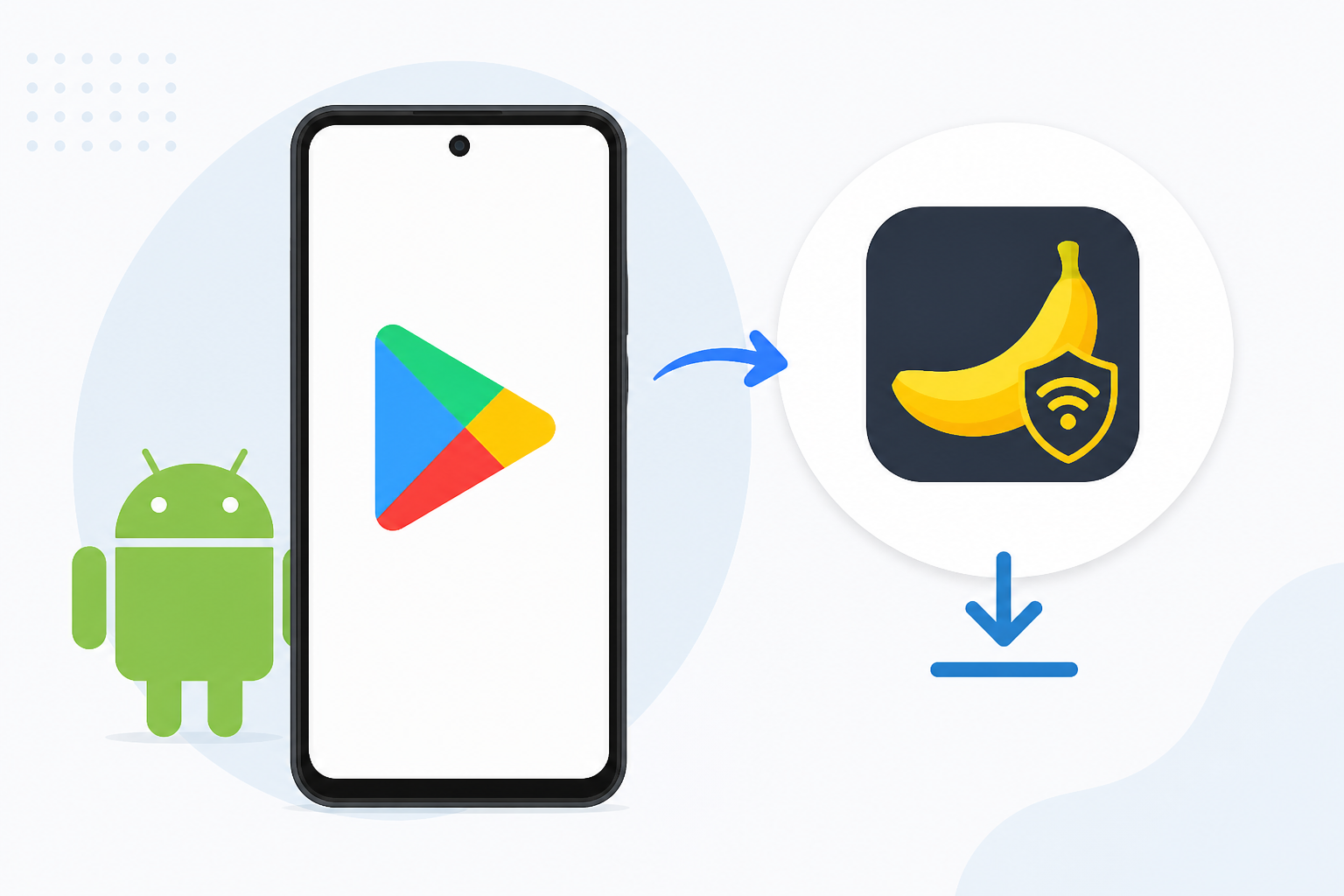
Download BananaVPN on Android via Google Play Store

BananaVPN: Download and Install Guide (Android & Fire Stick) — Download BananaVPN on Android via Google Play Store instructional illustration
  1. Open the Google Play Store on your Android device and search for BananaVPN.
  2. Tap Install, then open the app once it’s installed.
  3. Launch BananaVPN and sign in if required. You’re protected once you connect.

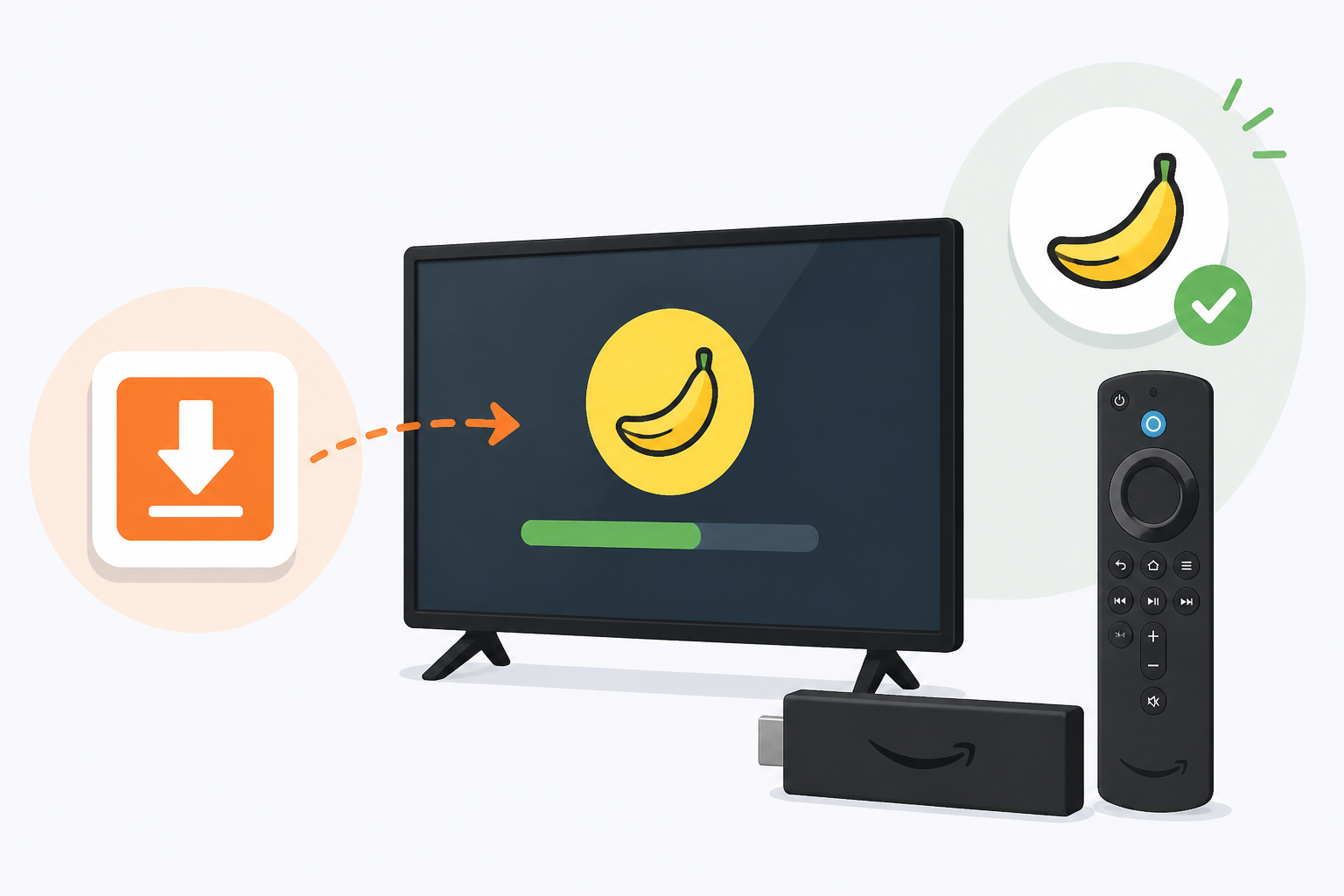
Install BananaVPN on Amazon Fire Stick using Downloader

BananaVPN: Download and Install Guide (Android & Fire Stick) — Install BananaVPN on Amazon Fire Stick using Downloader instructional illustration
  1. On the Fire Stick, go to Settings & Device > Developer Options, then turn Apps from Unknown Sources to ON.
  2. Return to the Home screen, use the magnifying search to find Downloader, and install it. If you prefer, press and hold the microphone button on your remote and say Downloader to locate the app.
  3. Open Downloader, enter https://go.wowlink.ca/BananaVPN in the URL field, and press Go.
  4. When BananaVPN finishes installing, select Open.
  5. Open BananaVPN and sign in with the email and password you used when ordering the service, then press the Power button to connect. When the indicator turns green, you’re protected.

Tip: You can press and hold the mic button on your remote and say “Downloader” to locate the app quickly.

Was this answer helpful?

You can rate this answer without signing in.

Community

Comments (0)

No approved comments yet. Start the conversation.

Live support Ask a question and keep the conversation in one place.